Unofficial Transcript
If you are able to log in to your student dashboard page, you can also view your unofficial transcript through a link on your student banner account. Please let us know if you need a password reset
.
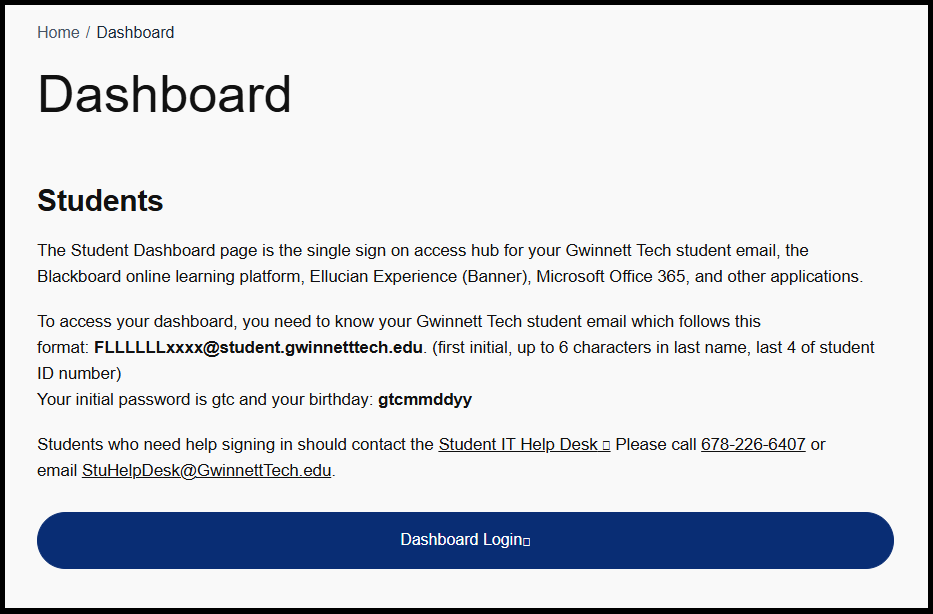
1. Log in to Dashboard using your GTC Email ID and Password
.
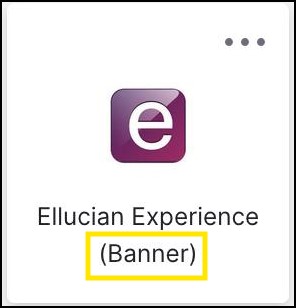
2. Click the Ellucian Experience Icon
.
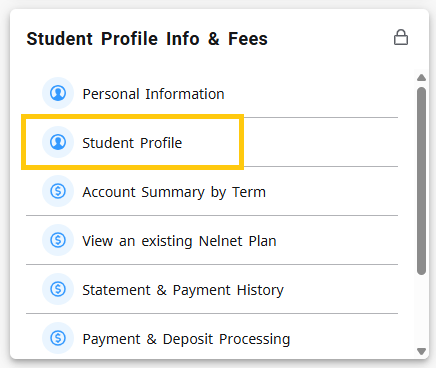
3. Click the Student Profile link on the Student Profile Info & Fees card
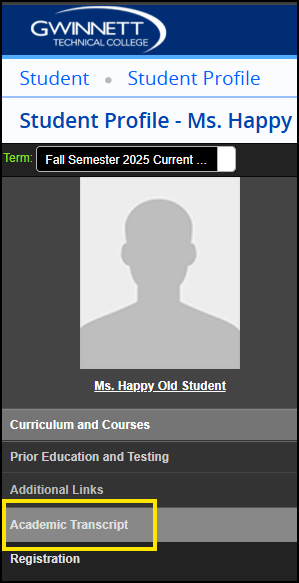
4. On the left side click Academic Transcript
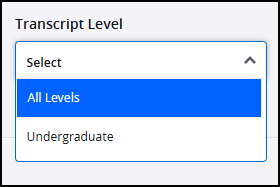
5. On the Transcript Level drop down menu, select All Levels
6. On the Transcript Type drop down menu, select Unofficial Transcript
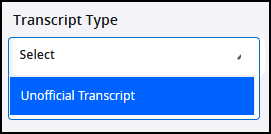
Click Submit to display your unofficial transcript.
You can use print to PDF to save a copy.
Official Transcript
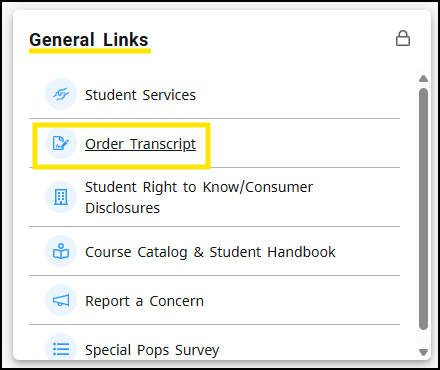
If you need a copy of your Official Transcript for yourself or to send to a school, you can order one by clicking the Order Transcript Link on the General Links card.
Order from Parchment
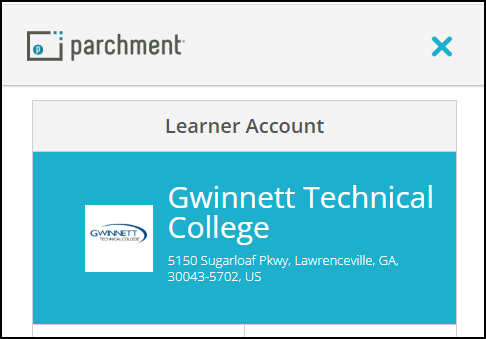
The Order Transcript Link will take you to the Request Transcript page on the Gwinnett Tech Site.
Follow the instructions to order an Official transcript from the Gwinnett Technical College Parchment Institution Link
Parchment support
For help with the transcript order system contact Parchment Support
Contact The Office of the Registrar
If you have question about your transcript, please contact the Registrar's Office
678-226-6621 | RegistrarsOffice@gwinnetttech.edu
https://gwinnetttech.edu/enrollment/request-transcript/
.
If you need tech support with anything else, please let us know.
You can send us a message, give us a call, or come see us in person in the front lobby in building 100 on the Lawrenceville campus.
Tech Support desk on campus, hours and location.
Thank you
Student Tech Support